Careers pagesBeginner guide
How WordPress job posts get into Google for Jobs.
What Google for Jobs needs from a job page, how to get your WordPress jobs eligible, and how to check them, without writing any code.
By The Vakanssi team7 min read
In this guide (9 sections)
This guide is for you if you post jobs on your WordPress site and want them to show up when people search Google for work. You do not need to write code or install an SEO plugin.
You will learn what Google needs from a job page, how to get your jobs ready, how to check them, and which part only Google controls.
What Google for Jobs is
Search Google for a role, such as "office manager jobs in Leeds", and you may see a box of job openings that people can filter by location or job title. That is Google's job search, usually called Google for Jobs. Each listing links to a page where people can apply, such as your own job page.
Google fills that box from job pages across the web, but only from pages that describe the job in a format it can read.
Structured data, in plain words
A person reading your job page sees a title, a description, a location and maybe a salary. A search engine reads the same text but has to guess which line is the salary and which is the city.
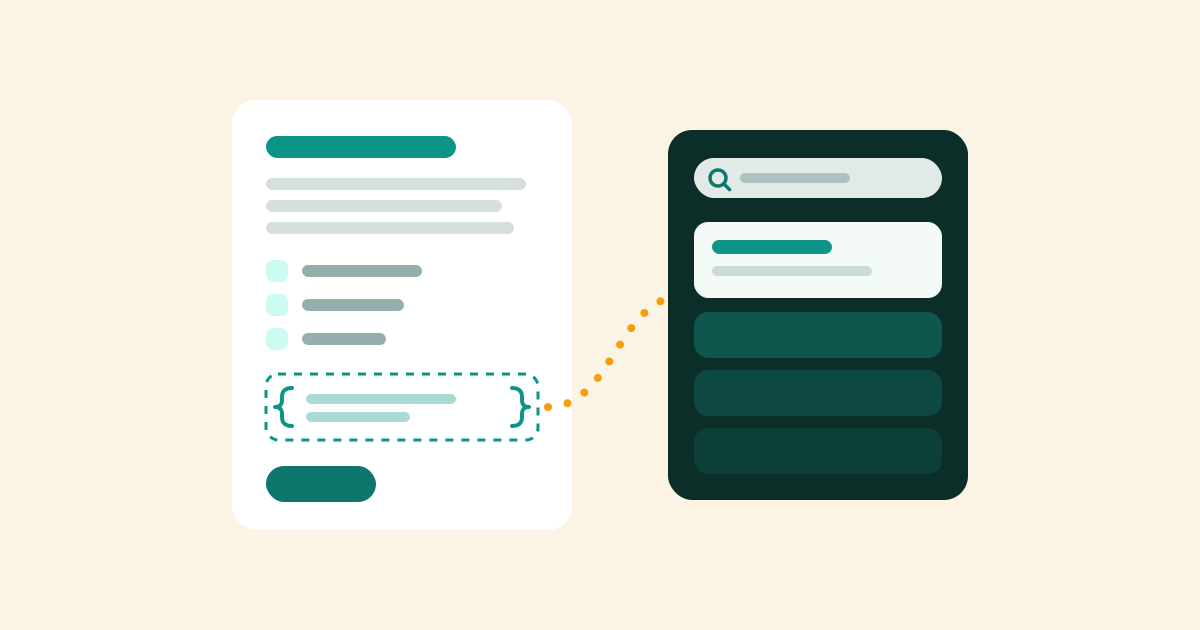
Structured data removes the guessing. It is a short summary hidden in the page's code that labels each fact: this is the job title, this is the city, this is the closing date. Visitors never see it. For jobs, the set of labels Google reads is called JobPosting.
What Google asks for
Google publishes its rules in its job posting structured data guide. For a beginner, they come down to two groups.
The facts every job must carry:
- a job title and the full description: duties, qualifications, skills, working hours, education and experience
- the date it was posted
- the organisation that is hiring
- where the job is, or for a fully remote job, the countries applicants can live in
The rules about the page itself:
- One job per page: the structured data goes on the job's own page, never on a list of jobs.
- There must be a way to apply.
- No expired jobs. When a job closes, its page must carry a closing date in the past, lose its structured data, or be removed.
- If you fill the job before its closing date, Google asks you to remove the posting.
Without the required facts, a job cannot appear in Google's job search. Break the page rules and Google can remove the job and take a "manual action" against the page, which means it ignores the page's structured data.
How Vakanssi handles it for you
If your jobs run on Vakanssi, our free hiring plugin, you never write structured data. Vakanssi builds it from the fields you fill in when you post a job: title, description, location, salary, employment type and closing date. The job page shows the same fields, so what Google reads matches what visitors see.
- You fill inthe job fields
- You publishthe job goes live
- Vakanssiwrites the data
- Googledecides when
To see where a job stands, go to Hiring, then All Jobs, and click the job title. At the top of the Job details box is a banner headed Google for Jobs readiness, with a checklist under it. It shows one of two states:
- Eligible: every required check passes, and Vakanssi will publish the structured data for this job.
- Not eligible yet: something is missing, and the checklist says what. If the field to fix is on one of the box's tabs, click the item to jump to it.
The checklist updates as you type. One check, Published, only passes after you publish, so a draft always reads Not eligible yet. Fill in everything else, then publish.
For example, the checklist asks for a description of at least 30 characters, a city and country (or at least one country for a remote job), and a currency for any salary you show. Until the checks pass, Vakanssi holds the structured data back. The page still works for visitors in the meantime.
When a job's closing date passes, Vakanssi takes it out of Google for you. It removes the structured data, adds a noindex tag (which tells search engines to drop the page from results) and takes the job out of your sitemap.
If you fill a role early, change the job's status from Published to Draft. The page then returns "not found", which Google accepts as a removed posting.
If you also run an SEO plugin, go to Hiring, then Settings, then Jobs & Careers, and find JobPosting structured data under Job search & SEO. Leave it on the default, Vakanssi owns it. Vakanssi then removes job markup from the SEO plugins it supports, so each page carries one copy. The Google for Jobs docs explain the other choices.
Eligible does not mean listed
Eligible means your page gives Google everything it asks for. It does not mean Google will show the job.
Google's guide says it "does not guarantee that features that consume structured data will show up in search results." Its page on recrawling adds: "Crawling can take anywhere from a few days to a few weeks."
So publish, check the page (next section), and give it time. Nobody outside Google can promise your job a place there.
How to check a job with the Rich Results Test
Google's free Rich Results Test reads a page the way Google does and lists the structured data it finds.
- Open a published job on your site and copy its address.
- Go to the Rich Results Test, paste the full address and run the test.
- In the results, look for a job posting among the items detected.
- Click the item for details. An item "with warnings" is still valid; warnings only suggest improvements. An invalid item has a problem that stops it appearing, so fix it.
Do this once after your first job goes live. After that, the readiness banner is your everyday check.
To see whether Google has added a job page to its index (the pages it can show in results), use Google Search Console, Google's free tool for site owners. Once you have verified your site there, its URL Inspection tool shows whether a page is indexed and lets you request indexing for a new one.
Google says a request "does not guarantee that inclusion in search results will happen instantly or even at all."
If a job still does not appear
Work through it in order:
- Is the banner on Eligible? If not, fix what it lists and save the job.
- Does the Rich Results Test find a job posting on the live page?
- Has it been more than a few weeks? Then check the page with URL Inspection in Search Console.
The troubleshooting guide has more detail for each step.
Checklist
- Each job has a full description, a location (or remote countries) and a way to apply.
- The readiness banner says Eligible once the job is published.
- The Rich Results Test finds a job posting on your first live job.
- Closing dates are set where you know them, and filled jobs go back to Draft.
- Whoever is waiting knows that a listing is Google's decision and can take weeks.
Your next step: if your jobs are not on your site yet, start with How to add a careers page to WordPress.
Frequently asked questions
Do I need an SEO plugin for Google for Jobs?
No. Vakanssi adds the job structured data itself. If you already have an SEO plugin, keep it. On the default setting, Vakanssi removes job markup from the SEO plugins it supports, so a job page carries one copy.
Do remote jobs work?
Yes. Set Workplace type to Remote and list the countries people may work from under Eligible countries (remote). Google needs at least one country for a fully remote job, and the readiness checklist asks for it.
How long until my job shows up?
There is no fixed time. Google says crawling can take from a few days to a few weeks, and showing a job is always Google's decision. Eligible is the part you control.